Using Droidian on a Google Pixel 3AXL Phone
Last month, I published a review of my experiences with Ubuntu Touch on a Google Pixel 3AXL. While a fascinating project, I am not (yet) able to whole-heartedly recommend Ubuntu Touch as a daily driver.
Someone on Mastodon suggested trying Droidian next. Droidian is nearly fully optimised for the Google Pixel 3AXL, recommended as one of Droidian's officially supported devices:
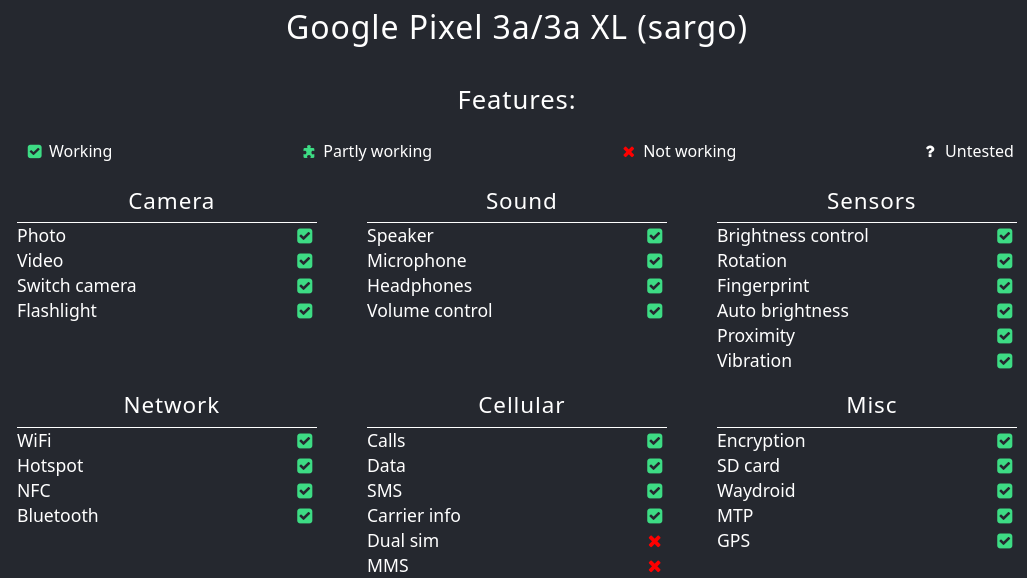 Droidian almost fully optimised for Google Pixel 3AXL (source: https://devices.droidian.org/#/devices/sargo)
Droidian is based on the Linux mobile operating system Mobian. The difference between the two is that Droidian, like Ubuntu Touch, uses a software layer called Halium to communicate with the Android system, whereas Mobian is Linux only. Both projects enable users to try out Debian Linux on their mobile devices.
The UBports installer (that I had downloaded previously for testing Ubuntu Touch) also gives the option to install Droidian. Taking this route did cause me some headache, as I'll explain next.
Installation and setup
Update - I previously ignored the following warning on the Droidian page for the Pixel 3AXL:

I have since learned that it is important to heed it. You can use the Android Flash Tool in the Chrome browser to do this.
Installation of Droidian on the Google Pixel 3AXL was simple with the UBports Installer. You can also downloade an easy installer for the Pixel 3AXL directly from the Droidian website. I selected the 'Phosh' desktop environment option.
The installation is straightforward, that is, until you get to selecting your location and a short presentation on touch screen actions. These are oversized and impossible to read or navigate. You can use the Compositor tool in the Mobile Settings app to specifically scale down the presentation (which is called 'mobi.phosh.PhoshTour') but having to do this before you've learned about the different swiping actions is in no way helpful.
The monitor scaling (in the pull down settings menu) is set to 300% by default, and I would leave it there; if you reduce it to 100%, you may not be able to click on the link to get it back to regular size!
Installation was otherwise a breeze, HOWEVER, I ran into a bit of trouble here, as the UBports installer installed the latest version of Droidian 102, and I discovered the hard way, a day or two later, that not all apps are fully optimised for this version, including, importantly, the Camera app.
I downgraded to Droidian 101, and then the Camera and a few other apps, including Maps, worked fine. I got help in the Droidian Matrix room. (For information about using ssh and downgrading the OS version, scroll down to the 'How to...' section below the Conclusion.)
Apps, Software store and Waydroid
Droidian has a pleasant graphical user interface called Phosh (stands for Phone shell) and it comes with several useful default applications. Droidian apps can be browsed in an attractive, user-friendly Software store.
The Software store displays a list of applications that are either designed for desktop only, or those labelled adaptive, which means they can work on desktop and on mobile screens. Annoyingly, I couldn't find a way to set a filter to display only those apps that are compatible with a mobile phone.
However, there is a helpful toggle at the bottom of your home screen which helps you switch between showing 'All Apps' and only showing 'Mobile Friendly Apps' that you have installed.1
A second place to look for applications is the website linuxphoneapps.org. This repository does have helpful filter commands, like Services (KeePass, for example), Categories (calculator) and Mobile Fit. Many of these apps can be directly installed to your phone via a blue Install button on each applications webpage. I also like that 'Mobile Fit' compatibility is rated from 1 to 5, with 5 being completely compatible. The site is run by volunteers, and they are doing excellent work!
A third option is to install Waydroid, which can be done with the click of a button in the Settings menu. Waydroid functions as a contained environment that runs regular Android apps, seemingly without a hitch!
After receiving assurances on the Droidian Matrix that Waydroid is completely isolated and can be killed with a simple swipe upwards, I decided to install the Google Play store inside the Waydroid compartment. (See the 'How to...' section at the bottom of this article for details.) Doing this has enabled me to successfully install banking and ID applications, and, thankfully, this method works! Of course, you don't have to install Google Play and can just use alternatives like F-Droid and Aurora, but my banking app won't work in that environment.
It is worth nothing that when you first start Waydroid, you can set up a bridge folder between the two operating systems. This is useful, as it is not possible to copy and paste text between Waydroid and Droidian applications. The folder sits in the Home folder in both places, and is named either 'Waydroid' or 'Droidian', depending on which operating system you are in when accessing the folder.
With these three options in place, and the helpful tweaking tool called Mobile Settings, you're ready to starting using Droidian!
Things that worked well
Using Droidian is fun. This is in part because solutions are easy to find, and mostly seem to work! I spent many evenings tinkering with Droidian on my phone, trying out all kinds of software, and it rarely felt like frustrating work. It's satisfying, for example, to discover that an app like Flare enables you to connect with your friends on Signal with a few limitations.
With that in mind, I will list apps that work well, in order to illustrate what a regular user's setup might look like and perhaps save readers time testing the whole range alternatives, many of which won't work as well, or at all.
When testing new apps, it is useful to remember that the Compositor option in the default Mobile Settings enables easy scaling down of specific applications originally built for a desktop environment.
Here are the features and apps that work well on Droidian:
Firefox comes with Droidian and works right away. Logging in onto accounts on Firefox was sometimes the only way to share files via my Nexctloud server. The other browser is called Web but I found it less reliable and felt more dated. Web does enable creating web applications, however.
Signal messages can be accessed via Flare, which takes advantage of desktop linking of your Signal account. It is easy to link devices, and it works well, though you cannot zoom in on photos in app, and it's difficult to see which threads have unread messages. Calling/video calling does not work at the moment. Despite all of this, having Flare was key to my enjoyment of Droidian.
Your KeePass password database can be read and edited with Secrets. This works flawlessly.
Bluetooth connections worked without any problems.
Tidal is a music streaming service that can be accessed with High Tide. I initially had some problems getting into my account, but eventually it worked.
I used Authenticator, a 2FA app, to import my Aegis data.
I created a free VPN account with Proton and the Proton VPN app, downloaded from the Software store, worked well, even though it is labelled as a desktop only application. (I have not found a way to use Mullvad on Droidian). I do have some concerns that having a VPN may have interfered with the Flare app at one point.
Cinny is a simple, effective Matrix client. It is cross-platform, and I liked that it can be set to monochrome. I am new to Matrix and joined the protocol in order to be able to ask questions in the Droidian and Flare rooms. (Thanks to Techlore for the clear explainer video here!)
Newsflash is a good RSS reading tool, and Podcasts perfectly good for keeping up with listening. Gapless plays downloaded music files, and Pipeline, by the same developer who made Flare, works as a front-end for YouTube.
I found Apostrophe to be a good Markdown editor.
I used Waydroid with Google Play to run my banking and governmental applications. Surprisingly, everything worked. I recommend downloading F-Droid within Waydroid and installing the Fossify File Manager for easier file management in Waydroid. The 'Waydroid/Droidian' bridge folder is also useful for moving files between the two systems.
The Keyboard can be toggled on or off at any time by pressing and holding the white vertical line at the bottom of the screen. This was a god-send when holding down to paste text didn't work.
The Console app is a terminal emulator for Droidian. The default keyboard in Droidian has a 'Terminal' mode (hold down the little globe bottom left), which has some shortcuts like 'End' and 'Shift+Ctrl+V' built in. I did miss arrow keys, which are replaced by a somewhat oversensitive mouse pad when you press and hold down on the space bar, and, strangely, I found no Tab shortcut either (edit: that is, until I remembered that TAB is just a regular key).
Screenshot - I installed the app by this name, as holding down the power button seems to include the screenshot tool in any screenshot I took!
The default Maps app works for navigation, but persists on placing me across the street from where I live. Railway (also by the developer of Flare) has clear travel information, but no purchasing options. I installed my favourite map app Organic Maps inside Waydroid as a back-up.
The Ente app works well for photo management and auto-uploads. Just select the Pictures folder on your device in Ente and photographs are automatically secured and synced!
What did not work well
While there were far fewer issues with Droidian compared to other Linux mobile systems I have tested (on different hardware), there were a couple of points of frustration.
I do not understand why the easy installers for the Google Pixel 3AXL give you a version (102) in which the camera app doesn't work. Given the camera is a basic requirement, this could be a big deterrent for any newcomers to Droidian. The same is true for the over-scaled introduction presentation every new user gets.
The main obstacle I have to considering Droidian as a daily driver is that I can't sync my Nextcloud files and folders**. Ubuntu Touch had an app for this, but I could not find one that works in Droidian. My KeePass database is accessed from different systems, so I had to remember to regularly download my database, and to never add new information from within Droidian. Update - now works - see below.
Some apps only opened properly if I pressed and held down on the icon, selected 'View Details' and then opened the app from within the Software store. This included Authenticator and High Tide.
Some apps refused to shut down, which led to a silly game of swiping up apps that kept popping back down after a few seconds. Sometimes this was due to an uncompleted action in a second window, which need be to killed first.
Droidian crashed and froze up on the Pixel 3AXL more than I would have liked it to. Perhaps it was because I am experimenting with different setups, but it is quite frustrating when the whole operating system gets completely stuck five or more times in a day. The only option is to reboot the system by holding down the power button for about 10 seconds.
I have not been able to find a good alternative to Cake Wallet, and may have to add that in Waydroid. Attempting to log onto Kraken pro on Firefox was extremely slow.
Flare hiccups & quick solutions!
During testing and writing, the Signal app Flare started giving me error messages. I joined the Flare Matrix room and found the developer quick to respond and helpful in answering my beginner questions. He immediately worked on and uploaded a fix for my issue, and everything now works again. Having Flare is crucial, and losing access to Signal messages could put a serious dent in my enthusiasm for Droidian in general.
Patchy documentation, no user forum
One more obvious shortcoming for Droidian is its fragmented user help and documentation. Droidian.org is a good homepage, which can help you find the correct device download:
 Clear options on droidian.org
However, once you get into working with Droidian, you may find the documentation, which exists solely on the wiki page, less helpful. Category headings like 'A collection of information' and 'Some useful tips and scripts' suggest a more haphazard approach, one that sits in quite stark contrast to Ubuntu Touch's clear, methodical and user-friendly documentation pages and excellent forum.
Droidian has no forum, and its last blog post is dated 2023.
The Droidian Matrix room (#DroidianProject:matrix.org) is the best place to get help. People there were quick though super concise with their responses. This help does get mixed in with a stream of ongoing other technical discussions that were way over my head, as well as the usual memes and jokes. Matrix has a search function, but the results are a little difficult to unpack without their contexts.
I missed a static user forum where I could browse previous user experiences, documented solutions and find links to guides.
I missed a methodically structured user guide. Given that Droidian has the potential of becoming the most relevant and interesting Mobile Linux system for newcomers, I really hope the community will be able to up on their documentation game soon.
Conclusions
I really enjoyed using Droidian. In contrast to my experience with Ubuntu Touch, I seemed always be able to find working alternative solutions to problems I ran into. As a result, I found most of the apps I need daily on Droidian, including Flare, a Signal alternative, a Proton VPN app, the Secrets app for accessing my KeePass database, and Newsflash and Podcasts for keeping up with news. Banking and government apps can operate within the Waydroid container, which can be closed with a swipe upwards. Most other services seem to work well on Firefox.
The biggest issue I have at the moment is that I cannot sync with my Nextcloud server, which means that I have to manually download files I need via Firefox. Update - now works - see below.
During the writing of this article, Firefox stopped opening for a time (across several reboots) and, most unfortunately, Flare, an essential app for me when considering using Droidian as a daily driver, was not usable for a day or two due to persistent error messages.
While Droidian's wiki is patchy, the Matrix group is a good source for help. With Droidian being the more user-friendly of the two systems, they would do well to take a look at their close neighbour Ubuntu Touch's excellent documentation as a model.
I do miss the snappier experience I have with GrapheneOS on the Pixel 8, as well as the trust I feel with that system, but that is also a newer device. I have a growing suspicion that, within Droidian, operations can slow down significantly when three or more apps are running at the same time, but this does not detract from the fact that most things work.
Now that the review is done, I plan to pass on the Pixel 3AXL to one of my kids with Droidian and the above-mentioned applications installed. I believe it can work well as a practical introduction to Linux mobile for children, and I am excited to hear feedback on this from my children.
Or, if another reader recommends something else for the Pixel 3AXL, then I'll try that next!
Updates after publication
Nextcloud working!
Someone in the Droidian Matrix room helped solve the Nextcloud issue. Typing sudo apt install nextcloud-desktop in the Console and then setting the scaling to 100% (using Compositor in the Mobile Settings app) enabled syncing of the Nextcloud folders I need! I will need to test if my issue was related to the Flathub download or if I was just unlucky the first time I tried this app.
Switching Mobile App Filtering on
Thanks to Julian Schmidhuber, developer of the Flare app, I now know how to add the 'Show Only Mobile Friendly Apps' toggle to the bottom of the home screen: Mobile Settings app - Overview - Mobile App Filtering - On.
How to...
Connect with SSH
For those who prefer typing commands from a laptop or computer, you can connect to Droidian using ssh. You do need a USB cable for this.
Type sudo systemctl enable ssh in the terminal on the phone. Then connect your device with said USB cable and in the terminal of your PC, type ssh droidian@10.15.19.82. The default password is 1234.
Downgrade the Droidian version
For anyone interested, downgrading can be done on device using the terminal. You need to edit this file:
etc/apt/apt.conf.d/90-droidian-snapshot
Change the word "next" in the line to the version you want to downgrade to, which in my case was "101". Typing cat /etc/apt/apt.conf.d/90-droidian-snapshot should then show:
Acquire::Droidian::Version "101"; (or whatever version of Droidian you want to downgrade to).
Then, run:
sudo rm -rf /var/lib/apt/lists/*
and finally,
sudo apt update && sudo apt dist-upgrade
Install Google Play within Waydroid
To do this, we need the terminal again:
sudo rm -f /etc/apt/preferences.d/waydroid-system
sudo apt install waydroid waydroid-{system,vendor}-custom
sudo waydroid init -f -s GAPPS
(See wiki.)
Documentation
Droidian for Google Pixel 3AXL
Linuxphoneapps.org & source & git page & historical beginnings
Flare (also the developer of Pipeline and Railway)
"The ULTIMATE Guide to using Matrix!" by Techlore
-----Discuss on Mastodon-----
Subscribe to my blog via email or RSS feed.
Find me on Mastodon.
| Previous |
|---|
This can be turned on in the Mobile Settings app, under Overview, then Mobile App Filtering.↩